
2.1 KiB
Installation
Installation is different based on the operating system used. Hereafter the instructions for Windows and Linux.
Windows
Installation on Windows is very straight forward. Download the latest release from traintastic.org/download, run the installer and follow the steps below.
Step 1: Windows defender
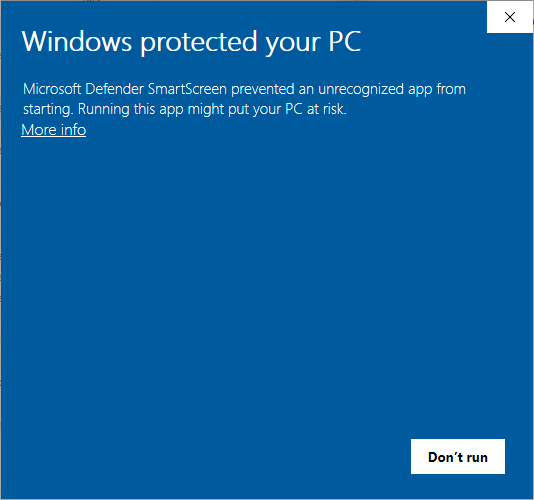
Click More info to show application information.
Step 2: Windows defender
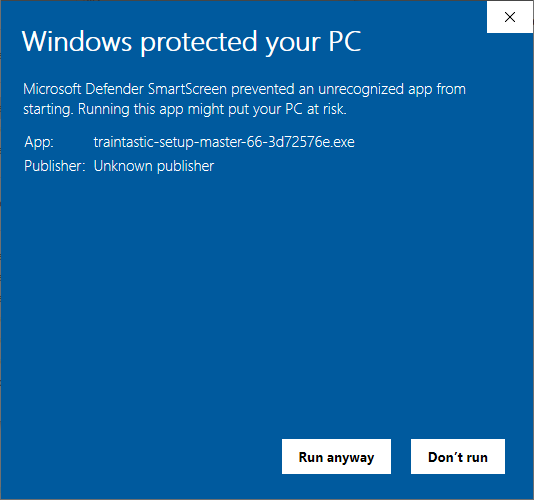
Click Run anyway to start the installer.
Step 3: User Account Control
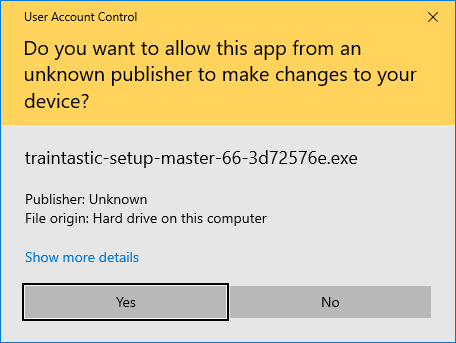
Click Yes to allow running the installer.
Step 4: Select language
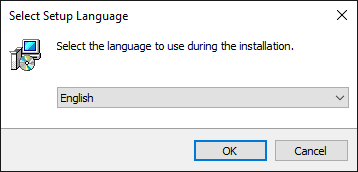
Select language for the installation wizard and click Ok.
Step 5: Licence agreement
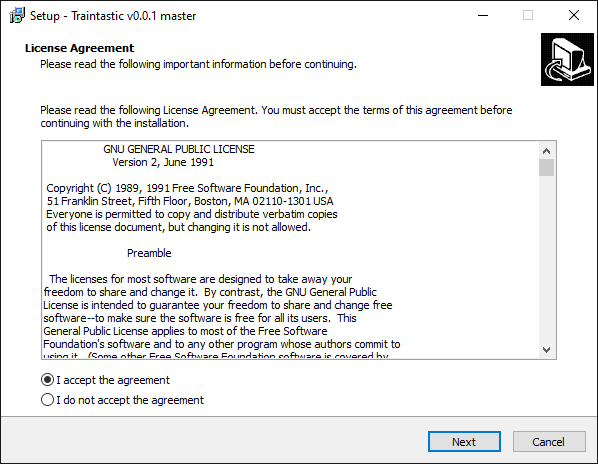
Select I accept the agreement and click Next.
Step 6: Select components
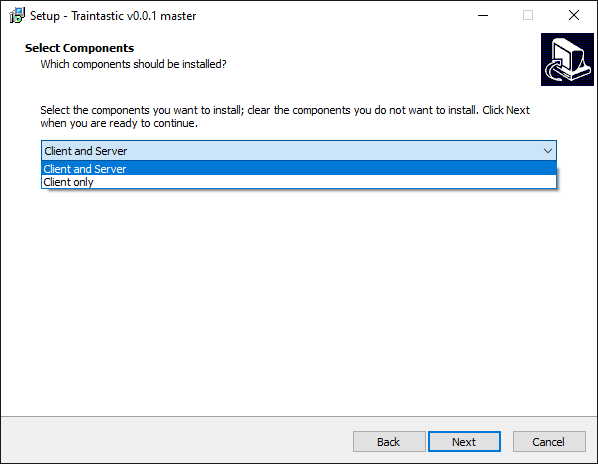
Select Client and Server if this computer will control the layout or select Client only if this computer is used as additional computer to operate the layout. Then click Next.
Step 7: Desktop shortcuts
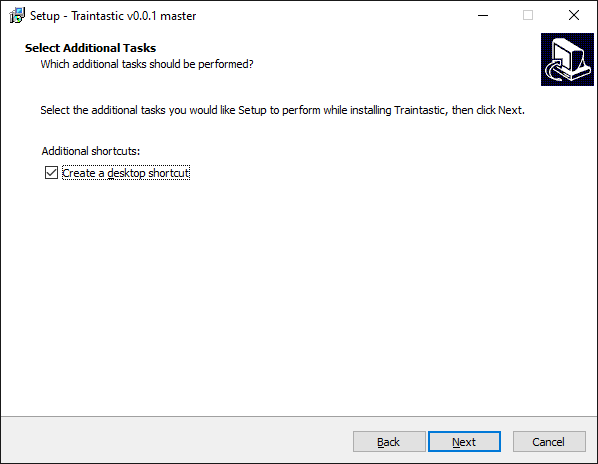
Uncheck Create a desktop shortcut if you don't want desktop shortcuts to start Traintastic, then click Next.
Step 8: Ready for installation
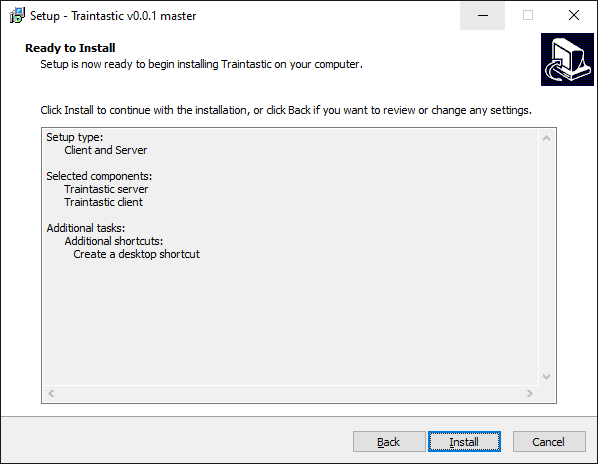
Click Install to start the installation of Traintastic.
Step 9: Installation finished
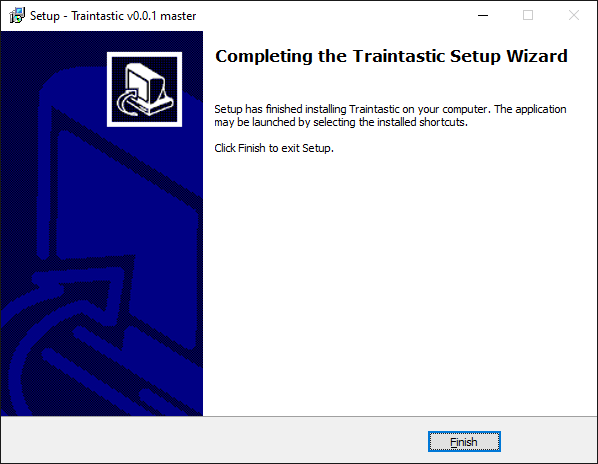
Click Finish to exit the installer. Installation is now completed.
Linux
Download the latest client and/or server package for your distribution at traintastic.org/download and install is using your graphical package manager or by running sudo dpkg -i package_name.deb in the console.